How to Organize Downloaded TikTok Videos on Your Phone ?
Be honest: how many TikTok videos are sitting in your camera roll right now? If you’re anything like most people, the answer is “too many” — a chaotic mix of recipes you’ll never cook, workouts you’ll never do, and that one incredibly specific meme you saved at 2 a.m. because it felt important at the time.
Here’s the thing: downloading the videos is the easy part. Keeping them organized so you can actually find the good ones later? That’s where most of us fall apart. But learning how to organize downloaded TikTok videos on your phone doesn’t require a complicated system or a paid app — just a few smart habits and about fifteen minutes of setup.
In this guide, I’ll walk you through a simple, phone-friendly system that works whether you’re on iPhone or Android. We’ll cover creating albums and folders, naming files so search actually finds them, favoriting the keepers, and moving older videos to the cloud so your storage stops screaming at you. Let’s tidy up.
In This Guide
Why Downloaded TikToks Become Such a Mess?
Before we fix it, it helps to know why your downloads turn into digital junk drawers. TikTok doesn’t exactly set you up for success: every video you save lands in your camera roll with a meaningless filename like “TikTok_7284917364.mp4” or a random string of numbers. Save fifty of those and good luck finding the pasta recipe from three weeks ago.
Then there’s the duplicate problem. You download the same video twice because you forgot you already had it. You may also end up with duplicate files when you save a video more than once or download another copy using a TikTok Video Downloader. Over time, these duplicates can make your camera roll harder to manage and take up extra storage space. Add drafts, screen recordings, and memes your friends sent you, and your phone storage fills up with clutter you can’t navigate.
The 5-Minute Setup: A Folder System You’ll Actually Keep
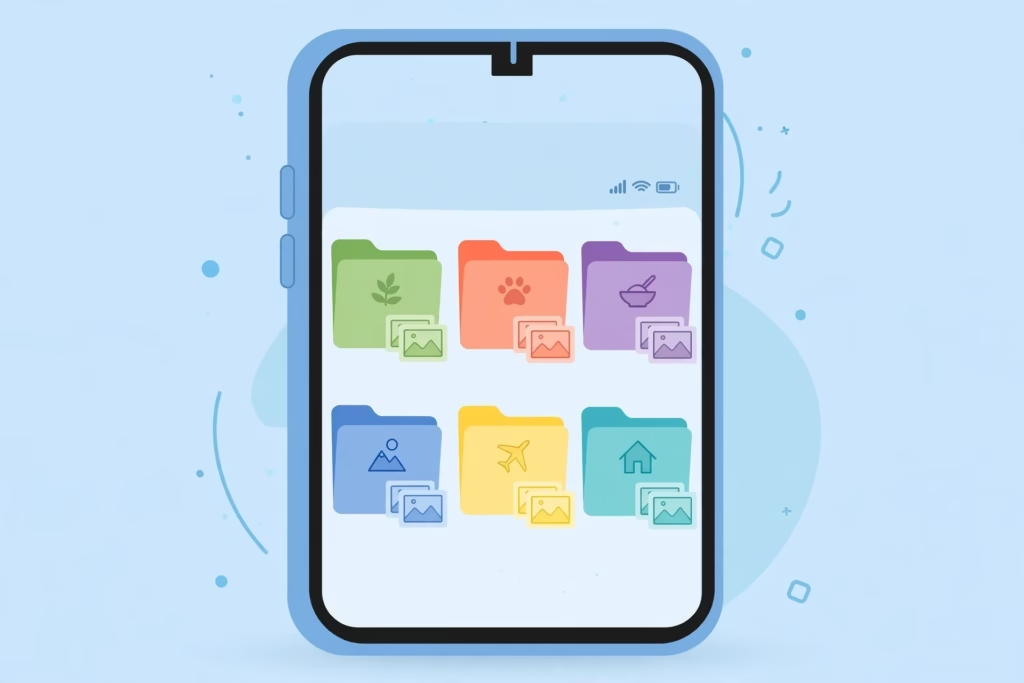
Forget elaborate taxonomies. The system that works is the one simple enough to maintain. Start with one parent folder or album called “TikTok” (or “TikTok Saves”), then create a handful of subfolders based on why you save videos. Most people only need five or six:
- Recipes & Food — cooking demos, restaurant finds, kitchen hacks
- Workouts & Health — exercise routines, stretches, wellness tips
- Funny — memes, skits, and videos that exist purely for vibes
- Travel & Places — destinations, itineraries, hotel tours
- Ideas & Inspiration — home decor, outfits, DIY projects, business ideas
- Favorites — the all-time greats you rewatch (more on favoriting below)
That’s it. If a video doesn’t fit any of these, it probably belongs in Funny — or doesn’t need saving at all, which is itself a useful filter. On iPhone, these become photo albums; on Android, they’re folders in your file manager or albums in Google Photos. The names stay the same either way, so the system survives even if you switch phones.
Naming habits matter as much as folders. When your phone or file manager allows renaming, use a descriptive filename you’ll recognize later, such as “creamy-garlic-pasta-recipe.mp4” instead of “video_8472.mp4.” Some downloads are saved directly to your Photos or Gallery app, where renaming may not be available in the same way. A date prefix helps too — “2026-03-14-morning-stretch-routine.mp4” sorts itself chronologically and tells you exactly how fresh the content is.
On iPhone: Albums, Favorites, and Smart Habits
iOS gives you everything you need in the built-in Photos app — no third-party organizer required. Here’s the workflow:
- Open Photos, tap Albums, then the + button to create a new album for each category (Recipes, Workouts, Funny…).
- When you download a TikTok, open it in Photos, tap the share button, choose “Add to Album,” and file it immediately. Thirty seconds now saves thirty minutes later.
- Tap the heart icon on your absolute favorites. The Favorites album becomes your highlight reel — perfect when a friend asks “send me that funny video” and you need it fast.
- Once a month, check the Duplicates album (Photos → Albums → scroll to Utilities → Duplicates). iOS finds identical copies for you — merge them and reclaim space in two taps.
If you prefer working with actual files, the Files app works too. Create a “TikTok” folder in iCloud Drive or On My iPhone, add subfolders and move downloads there. After files upload to iCloud Drive, you can remove downloaded local copies when your setup allows it, helping free up space on your iPhone. Make sure the files are safely stored in iCloud before removing any local copies.
iPhone Power Tip
Turn on iCloud Photos (Settings → your name → iCloud → Photos) before you start organizing. That way every album change and favorite syncs to your other Apple devices automatically, and you can safely use “Optimize iPhone Storage” to keep smaller versions on your phone while full-resolution originals live in iCloud.
On Android: Folders, Google Photos, and Your File Manager
Android is a folder-lover’s paradise. Your file manager — whether that’s Files by Google, Samsung’s My Files, or whatever came with your phone — lets you build a proper folder tree, rename files in bulk, and move things around with satisfying precision.
- Open your file manager and create a “TikTok” folder in your Videos or Downloads directory, then add your category subfolders inside it.
- Move each downloaded video into the right subfolder as soon as you save it. Most file managers let you select multiple files and move them in one go — batch your organizing weekly and it takes minutes.
- Rename files right in the file manager: long-press, tap Rename, and use descriptive names with dates.
- In Google Photos, mirror your system with albums: select videos, tap +, choose “Album,” and create matching album names. Star your favorites so they surface in the Favorites view.
On Android, the default download location depends on the app and how the video is saved. Check your phone’s download settings and file manager to see whether you can choose a specific folder or move files manually.. Even without that, the simple habit of filing videos weekly keeps everything findable.
Android Power Tip
In Google Photos, use Archive (not Delete) for videos you want out of your main view but aren’t ready to part with. Archived items are hidden from your main Photos view but remain accessible in the Archive section. Archiving does not itself back up a video, so check its backup status separately if you want a cloud copy.
iPhone vs. Android: Organizing at a Glance
Different buttons, same philosophy: file it now, favorite the best, and let the cloud carry the weight. Here’s how the two platforms compare:
| Task | iPhone (iOS) | Android |
|---|---|---|
| Create categories | Photos app → Albums → + New Album | File manager → New Folder, or Google Photos → + Album |
| File a new download | Share sheet → Add to Album | Move to folder in file manager |
| Mark favorites | Heart icon → Favorites album | Star in Google Photos → Favorites |
| Find duplicates | Photos → Utilities → Duplicates | Files by Google → Clean → Duplicates |
| Free up space | iCloud Photos → Optimize Storage | Google Photos → Free up space |
Smart Naming Habits That Make Search Actually Work
Folders get you 80% of the way there; good filenames cover the rest. Both iOS and Android search index filenames, so a descriptive name turns your phone’s search bar into a personal TikTok library.
- Lead with what it is: “sourdough-pizza-recipe” — not “IMG_4829.”
- Add a date when freshness matters: “2026-02-01-5k-training-plan.”
- Keep it lowercase with hyphens: readable everywhere, with no weird characters that break on some devices.
- Ditch the watermark duplicates: if you re-download a cleaner copy, delete the old watermarked one immediately.
You don’t need to rename everything retroactively — that’s a recipe for burnout. Just rename new downloads going forward, and rename old ones only when you stumble across them. The system improves itself over time.
Free Up Space: Move Old Videos to the Cloud
Here’s the uncomfortable truth: your phone was never meant to be a video archive. Once you’ve organized the keepers, move everything older than a few months to cloud storage and free up gigabytes in the process.
On iPhone, iCloud Photos with “Optimize iPhone Storage” is the path of least resistance — full-resolution videos live in iCloud while lightweight versions stay on your device. On Android, Google Photos backup does the same job: turn on backup, wait for everything to upload (check the backup status before deleting anything!), then use “Free up space” to remove local copies that are safely in the cloud.
Don’t Skip This Check
Never delete local videos until your cloud app confirms the backup is complete. In Google Photos, look for “Backup complete”; in iCloud Photos, check that the status at the bottom of your library says “Updated Just Now.” One impatient tap is all it takes to lose a video forever.
For videos that truly matter — the ones you’d be genuinely upset to lose — keep a second copy somewhere else too: an external hard drive, a USB stick, or a second cloud service. Cloud storage is convenient, not infallible, and irreplaceable memories deserve a backup of the backup.

The 10-Minute Monthly Routine That Keeps It Tidy
Organization isn’t a one-time project; it’s a light monthly habit. Put a recurring reminder on your calendar — the first Sunday of the month works great — and run through this checklist:
Ten minutes, once a month, and your TikTok collection stays a curated library instead of reverting to a junk drawer.
Frequently Asked Questions
Where do downloaded TikTok videos go on my phone?
On iPhone, TikTok saves go straight to the Photos app (your camera roll). On Android, they usually land in your gallery or in a TikTok folder inside DCIM, Pictures or Downloads, depending on your phone.If you’re having trouble locating a saved video, follow our step-by-step guide on how to find downloaded TikTok videos on Android.
What is the best way to organize downloaded TikTok videos on iPhone?
Use the Photos app: create one album per category, file each download with the share sheet’s Add to Album option, and tap the heart on your favorites. Turn on iCloud Photos with Optimize Storage so everything syncs and your phone stays light.
How do I organize TikTok downloads on Android?
Create a TikTok folder with category subfolders in your file manager, move downloads there weekly, and mirror the setup with Google Photos albums for easy searching. Star your favorites so they surface in the Favorites view, and use Free up space to clear local copies once they are backed up.
Should I keep TikTok videos on my phone or in the cloud?
Keep recent favorites on your phone for offline viewing, and move everything older than a few months to Google Photos or iCloud. Always confirm the backup is 100 percent complete before deleting local copies, and keep a second backup of any video you would hate to lose.
How can I find a downloaded TikTok video quickly?
Descriptive filenames are the secret: both iOS Spotlight and Android search index them. Combine good names (like 2026-03-creamy-garlic-pasta) with category folders and favorites and most videos surface in seconds.
Do I need an app to organize my TikTok downloads?
No. Your phone’s built-in tools handle everything in this guide: Apple Photos and iCloud on iPhone, your file manager and Google Photos on Android. Third-party organizer apps mostly add clutter; the built-in apps are faster and already synced to your cloud.
Start Organizing Today
You don’t need a free weekend or a color-coded spreadsheet — just fifteen minutes, a few folders, and the willingness to file videos as you save them. Start with your five category albums, favorite ten videos you love, and schedule that monthly ten-minute tidy-up. Future you, searching for that one recipe in seconds instead of scrolling for twenty minutes, says thanks.
And if your collection is about to grow because you’re saving videos worth keeping, grab clean, no-watermark copies with Clipzun’s free TikTok Video Downloader so your organized library looks as good as it functions.